
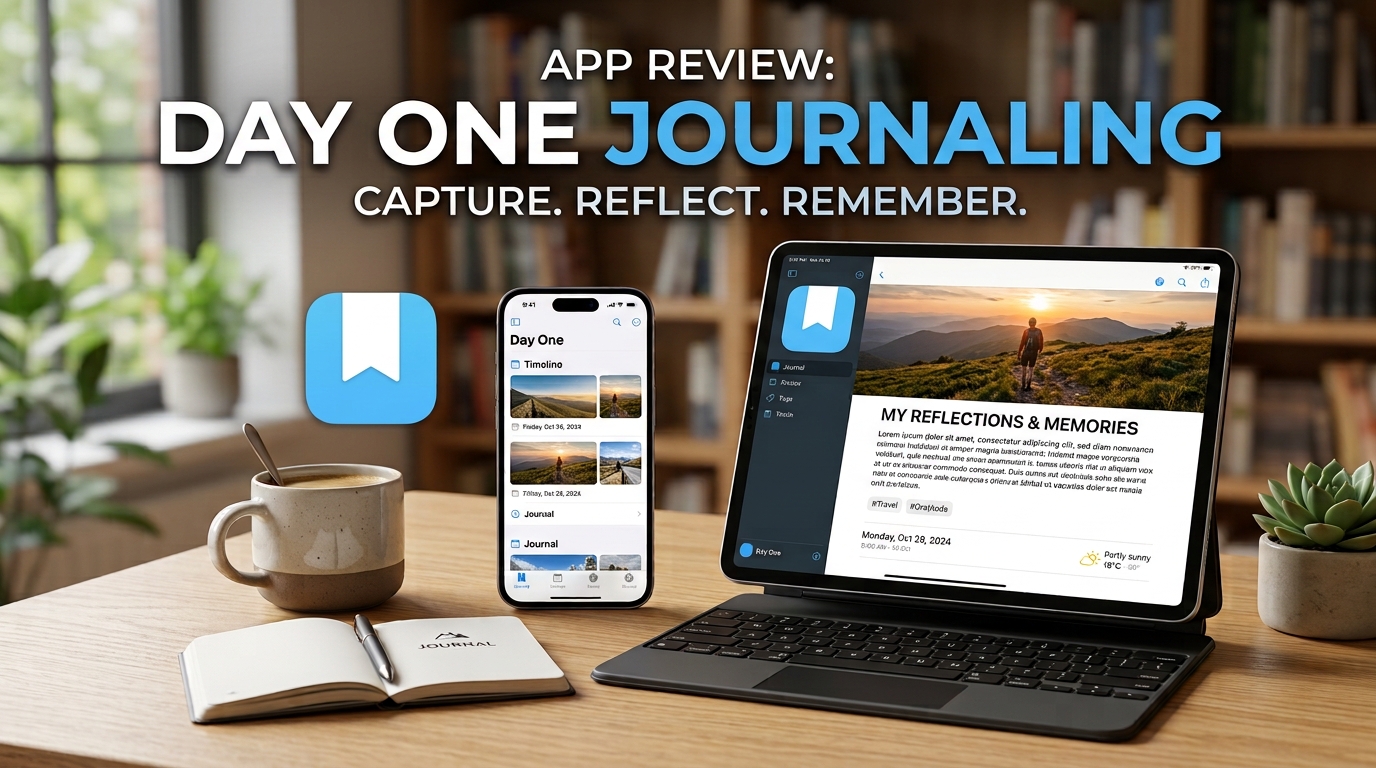
Day One
Every morning I open the Day One app. It is the first thing I do every morning after I shower and fix my breakfast. I have a six-year streak, without missing a day. I write about the start of this day, and fill out the details I remember from the previous day. Let me explain.
What is Day One?
- Day One is a diary, or a journalling app that runs on Mac, iOS, Android, and on the web.
- You can have multiple journals. For example, a personal journal, a work journal, a journal about the books you’ve read, or movies you’ve watched, a password locked journal for your very private thoughts.
- Every journal can include rich media content, such as photos, videos, or audio recordings. Plus text, of course. You can even include drawings or handwritten text you’ve created on your iPad.
- Every entry you make collects certain metadata. That is, it automatically records the date and time the entry was made, the location, the outside temperature, and any tags you’ve added to the entry. This is really handy for when you travel. You can see where each entry was made using the Map View.
- One feature that is helpful if you want to review past entries, is On This Day. Click that and you will see all the entries you made on this day in years past. See where you were last year at this time, or 5 or 10 years ago.
- Is it private? Privacy should be your primary concern when you are pouring your heart out, or writing about your bosses bad attitude. Yes, it is very private. Military-grad encryption, end-to-end.
- You can use their built-in writing templates, and get Daily Prompts to get you started. I made my own template. More on that in the TextExpander app topic below.
- If you like to use Extensions, there is a Safari and Chrome extension for Day One. You can save a website in your journal entry. The following was used to capture some text from a page on the web. It includes the title of the page as well as the link back to the page. This is super handy for research, whether it is research for your work, or gathering information for your next trip.
In Day One, “extensions” are add-ons that help you create or enhance entries more easily—for example, by capturing content from other apps/web pages and sending it into a Day One journal.
How Can You Enter Text And Media Into Day One?
- You can type on a keyboard
- Dictate
- Draw and add handwritten text on the iPad
- Scan text to an entry
- Photo or video capture
- Email to your journal
- Use the web extension as mentioned above
- Drag photos, videos, or PDFs into an entry
- Apple Watch entry – you can dictate, sketch, use emojis right from your watch.
Day One Plans
- There are 3 plans: Basic $0, Silver $49.99/year, and the new Gold Plan with AI added priced at $74.99/year.
Who Owns Day One?
This is a question I usually ask about any software or app I am about to invest in. Who owns it? Is the owner trustworthy?
Automattic bought Day One several years ago. Automattic is the creator of WordPress.com, which is the app I use to write this blog post. WordPress powers 41% of the websites in the world. So obviously it is very trusted.
Conclusion
I have been using Day One set 2010; that’s 16 years. And I don’t foresee ever giving it up. It is now a record of my life, and will continue to be so.
There are many ways to use Day One. Mine is just one example. I told my two brothers about Day One, and they constantly thank me for introducing it to them. And their uses are vastly different from mine. You just have to use your imagination on how you would like to use it. If you try it I’m pretty sure it will become part of your life too.
”Don’t live a silent life”
For more information about Day One see this older post.
TextExpander
Textexpander is another Mac app that I just can’t do without. It saves me an average of 20 minutes every week. I know that doesn’t sound like much but it adds up. I’ve been using it for over 10 years, and in those 10 years it has saved me 173 hours. That’s over seven days of my life. What’s that worth?
So What Is TextExpander?
In the simplest terms TextExpander takes a word, a phrase, an email boiler plate, or any other text, and converts it to the word or phrase by using just a simple abbreviation called a snippet.
How TextExpander Works
For example, if the name David is a name I type frequently then I would make a snippet for it. Snippet (the actual text), expands after a trigger is keyed on the keyboard. The trigger expands the snippet.
How Does TextExpander Recognize A Snippet?
Most of my snippets begin with a lowercase x. So the snippet abbreviation for David would be xd. I would type xd, press the space bar (one of many triggers) and the word David would appear.
Basically anything that I write repeatedly I make into a snippet. Such as my cell phone number (xcell), my address (xadd), any and all my relative’s names, and words such as Day One and TextExpander. Day One is xdo and TextExpander is xtex. [Learn more about TextExpander expansion.]
What Else Can TextExpander Do?
You can make a snippet of a template and then fill in the template’s missing fields Open the snippet, hitting the tab key and moving from field to field as you fill them in. (learn more about Fill-in fields in this video)
TextExpander can do math too. You can timestamp something. For instance, I can write xtime and it expands to 11:25. I can write xdate and it will expand to today’s date. And it can expand snippets about previous days, or days in the future, such as tomorrow. If I write xdated+1, it expands to tomorrow’s date and name of the day – 2026-08-17 Monday. (learn more about Dates and Times snippets here)
Conclusion
There is so much more that TextExpander can do. The best way to experience this is to give it a try. It is truly a remarkable application. Once you use it and get used to it, it is indispensable. Go to their website and you can learn all about it and sign up for a 30 day free trial. How much is your time worth?
Honorable Mentions
Setapp
This is another subscription that keeps paying for itself. I use over 30 of the 270+ apps that they offer, many of them costing as much as $100 per year. NotePlan, Ulysses (where I write and publish my articles, Expenses, Tripit, and TextSniper, are just a few that I use often.
Setapp is a curated app platform for Mac, iPhone, iPad, and the web, that lets you access a large collection of premium apps through one subscription instead of buying each one separately. Its library includes tools for productivity, writing, system maintenance, development, and more, with updates included; it also offers the option to subscribe to or buy selected individual Mac apps without a full membership.
Pricing and Plans
Plans range from a Mac-only tier at $14.99/month to bundles that add iOS device access at 18.99/month or support for multiple Macs under the Power User plan for $22.99/month. (This is the plan I use, and I use the annual billing) You can try all the apps with a 7-day free trial. Annual billing can save up to 40 percent compared to monthly plans.
NotePlan
NotePlan is another app I use daily. I copy my Daily Day One journal entry to it every day, so it mirrors Day One, all except for the photos, which I have to enter manually if I want them included. Like Day One, it writes in Markdown, so every entry and note uses minimal storage and is Evergreen (long lasting), so it won’t get outdated, and you won’t lose your data if, for instance, NotePlan goes out of business.
So Why Do I Use NotePlan? Because its search feature is superior. It integrates perfectly with Apple’s Calendar and Reminders, showing them in a sidebar view. And it is where I store all my valuable notes using the PARA filing system. PARA stands for Project, Area, Resource, and Archive. Every note I save, other than Daily notes, are filed under those 4 categories. And NotePlan is included with Setapp. Setapp includes versions for the Mac, and iPhone and iPad. It syncs across all three. Read more about it here. It really is a remarkable app. Try it free for 7 days, or better yet, sign up for Setapp. Go to the NotePlan front page and read it in its entirety. I’ve been using NotePlan for many years and reading the front page still impresses me.
Wow, I almost forgot. Security – unlike many apps your data is not held on their server. It lives on your machine and on iCloud. Totally private. Totally safe.
Keyboard Maestro
Not for the non-tech person, but a valuable tool for productivity. Keyboard Maestro creates macros that can do virtually anything on your Mac. It only works on the Mac. It doesn’t work in iOS or iPadOS.
It is a powerful macOS automation app that lets you create custom “macros” to perform repetitive tasks automatically. You choose a trigger—such as a keyboard shortcut, typed phrase, app launch, time of day, Wi‑Fi connection, or USB device—and then build a sequence of actions, such as opening files, moving windows, manipulating text or the clipboard, controlling apps, and running scripts. It is especially useful for advanced Mac users who want to turn multi-step workflows into a single command. Learn more here.
TextSniper
Ever run across some text on a screen that you cannot copy? Or text that is written at an angle, or in a photo, or in a banner, that your Mac refuses to see as text? Then TextSniper is for you.
Here’s what TextSniper states on its web page: Instantly capture non-selectable text from YouTube videos, PDFs, images, online courses, screencasts, presentations, webpages, video tutorials, photos, etc. It’s so simple and easy as taking a screenshot with a built-in snipping tool for Mac.
Save notes from videos, tutorials, etc. Copy and paste text from an image. Quickly capture words from a web page. Capture text from paper documents.
(I used TextSniper to capture that off of the Setapp web page.)
TextSniper is included with your Setapp subscription. TextSniper is a valuable tool to have on your Mac. When you run into a situation where you can’t copy some text, remember TextSniper, a small tool that you will come to love. Learn more about it here.
There’s lot more to say, and there are many more apps to cover. But this gives you something to think about. Record your life, be more productive, value your time, and let your Mac and iPhone do more work for you. You are worth it.
Leave a comment below and tell us what your favorite daily apps are. Name two or three that you use every day. Thanks. Till next time, this is Randino, signing off.






Leave a Reply